
A safe link is a URL that leads to a legitimate website without exposing you to malware, phishing attacks, or data theft. You can tell if a link is safe by hovering to reveal the true destination, checking for HTTPS and proper domain spelling, and using free URL safety checker tools like Google Safe Browsing or VirusTotal before clicking.
With 3.4 billion spam emails sent daily and over 1.13 million phishing attacks recorded in Q2 2025 alone (APWG via Secureframe, 2025), knowing how to verify links before clicking has never been more critical. AI-powered phishing has made malicious links harder to spot – AI-crafted phishing emails now achieve a 54% click rate compared to just 12% for human-written attempts (Hoxhunt, 2025).
In this guide, you’ll learn seven proven methods to check if a link is safe, discover the best free URL safety tools, and understand how to protect yourself from the increasingly sophisticated threats hiding behind innocent-looking URLs.
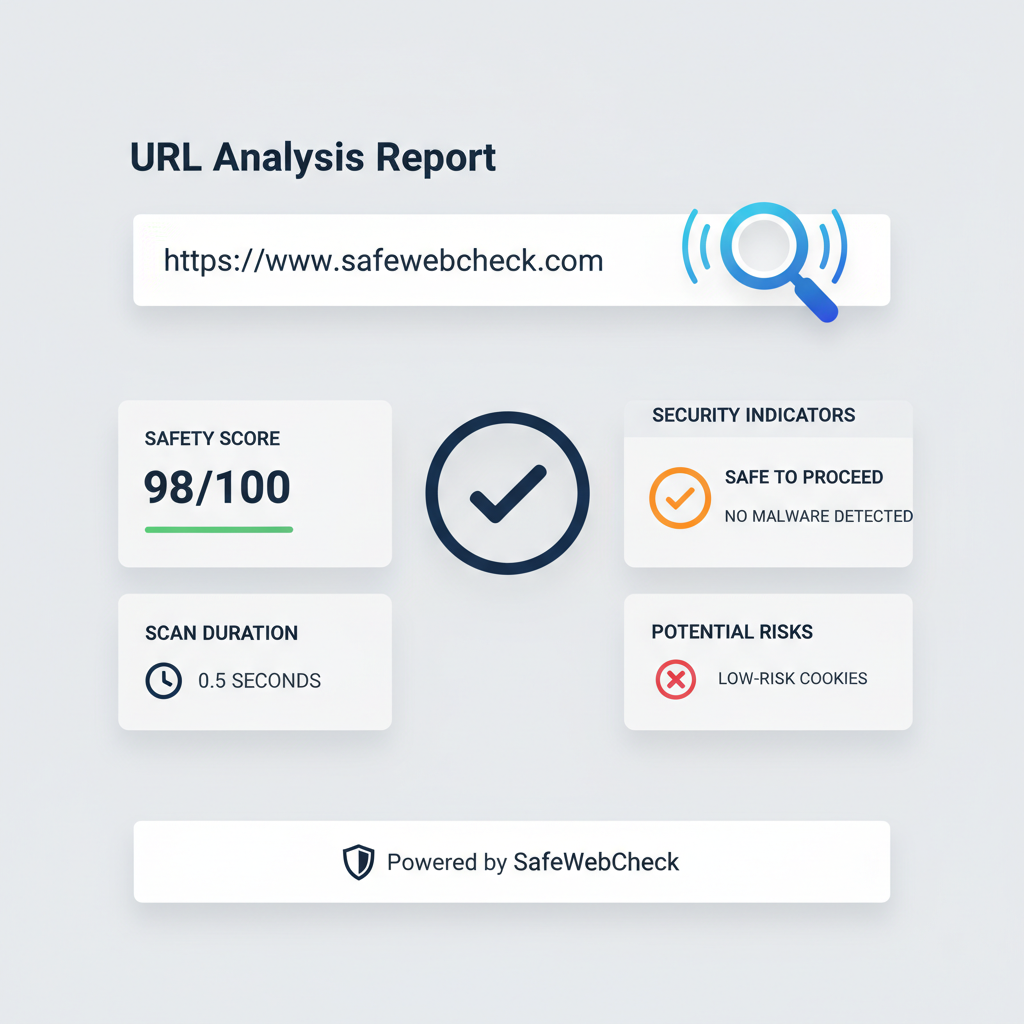
What Makes a Link Dangerous?
A dangerous or malicious link is a URL designed to steal personal information, install malware, or redirect you to fraudulent websites. Clicking a bad link can compromise your accounts, infect your device, or cost you money.
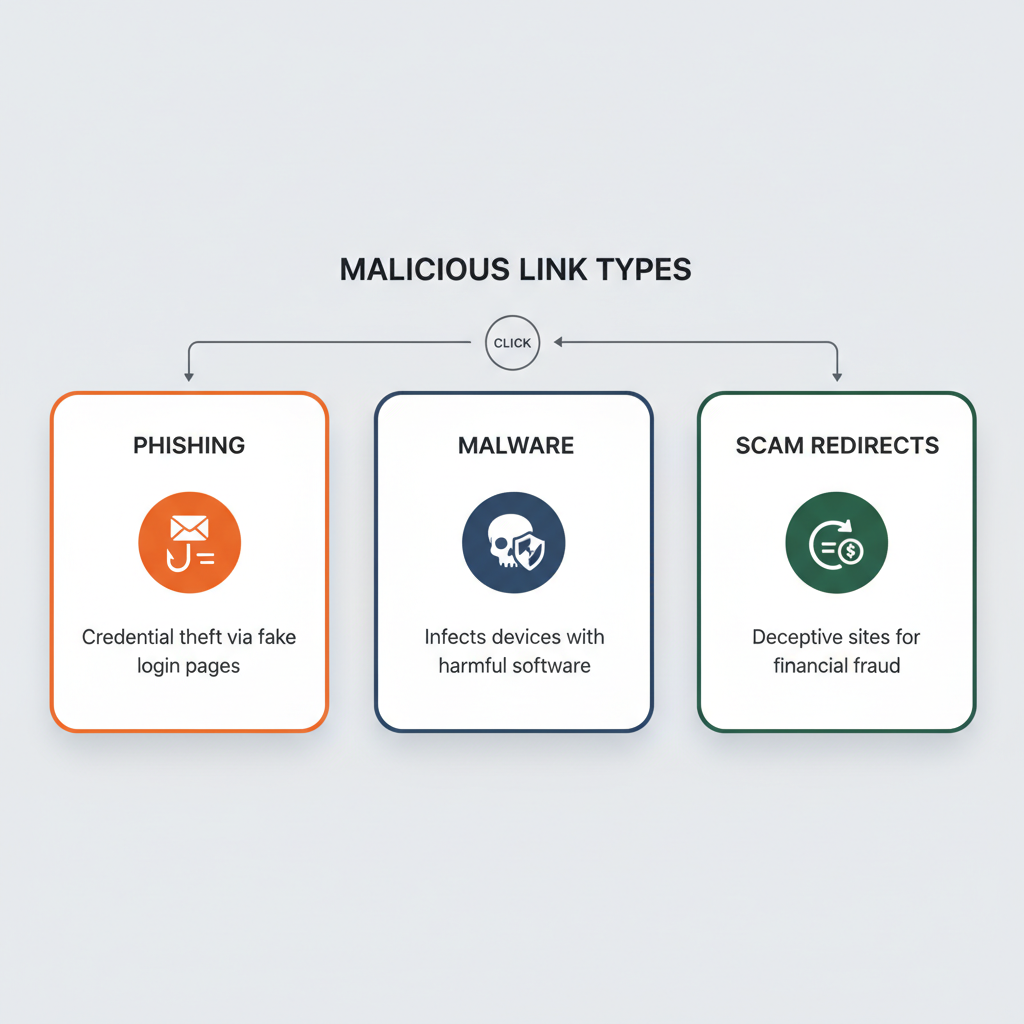
There are three main types of malicious links you’ll encounter:
Phishing links impersonate legitimate websites to steal your login credentials, credit card numbers, or personal data. These often look nearly identical to real sites like PayPal, Amazon, or your bank.
Malware distribution links trigger automatic downloads of viruses, ransomware, or spyware onto your device. Sometimes just visiting the page is enough to infect your computer.
Scam redirect links send you to fraudulent websites selling fake products, running tech support scams, or harvesting your information for identity theft.
The financial stakes are significant. Consumers lost $12.5 billion to email scams in 2024 – a 25% increase from the previous year (AAG IT, 2025). The average cost per data breach when phishing is the initial attack vector reached $4.88 million in 2025 (Deepstrike, 2025).
7 Ways to Tell If a Link Is Safe Before Clicking
Before you click any suspicious link, use these seven proven verification methods. Each technique adds a layer of protection against increasingly sophisticated attacks.
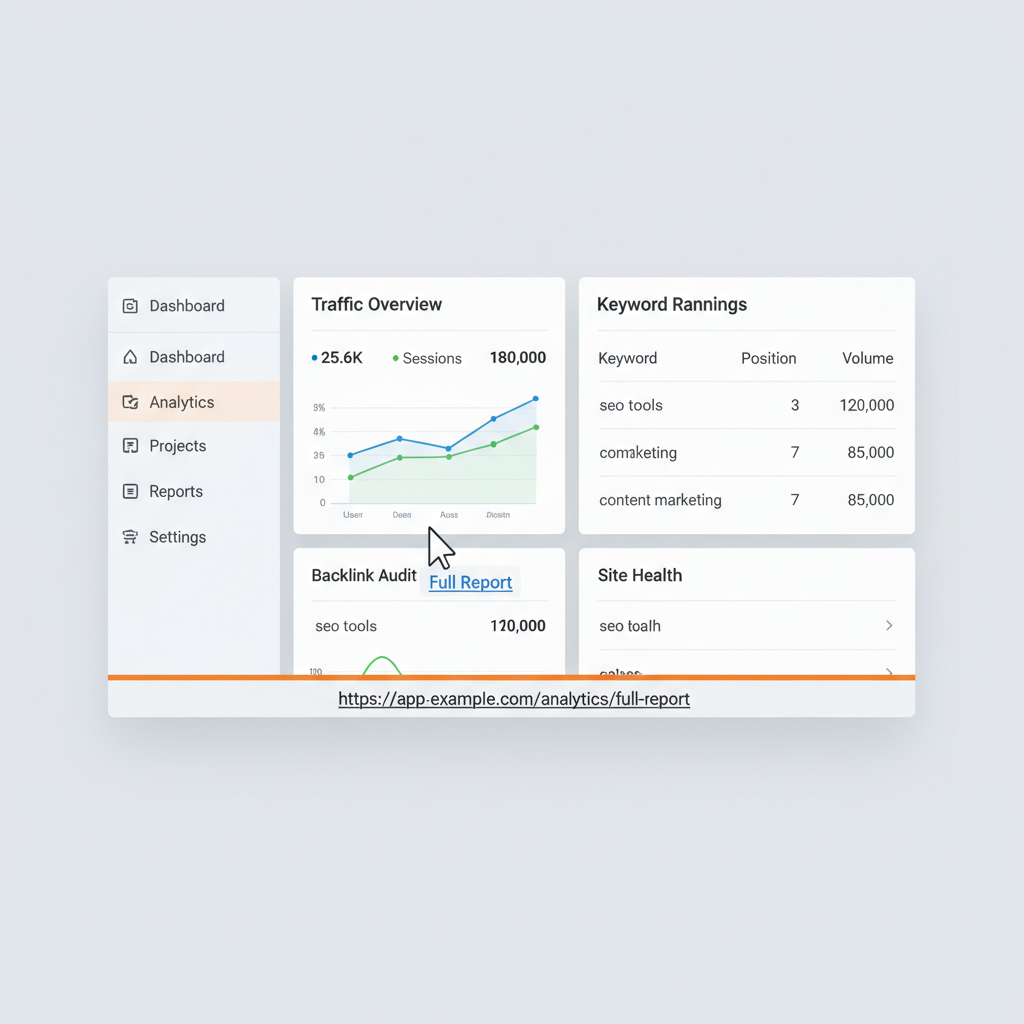
1. Hover Over the Link to Reveal the True URL
Hovering your mouse over a link reveals the actual destination URL in your browser’s status bar, allowing you to verify where the link really goes before clicking. This simple technique catches most phishing attempts instantly.
On desktop: Move your cursor over the link without clicking. Look at the bottom-left corner of your browser window where the real URL appears.
What to look for:
- Does the revealed URL match what you expected?
- Is the domain name spelled correctly?
- Does the URL start with https://?
For example, an email might show “Click here to log into PayPal” but when you hover, you see “paypa1-security.com/login” – that’s a clear phishing attempt.
On mobile: Long-press the link (don’t tap) to preview the destination. Most mobile browsers show a preview card with the actual URL before opening the page.
2. Check the URL for Spelling and Domain Red Flags
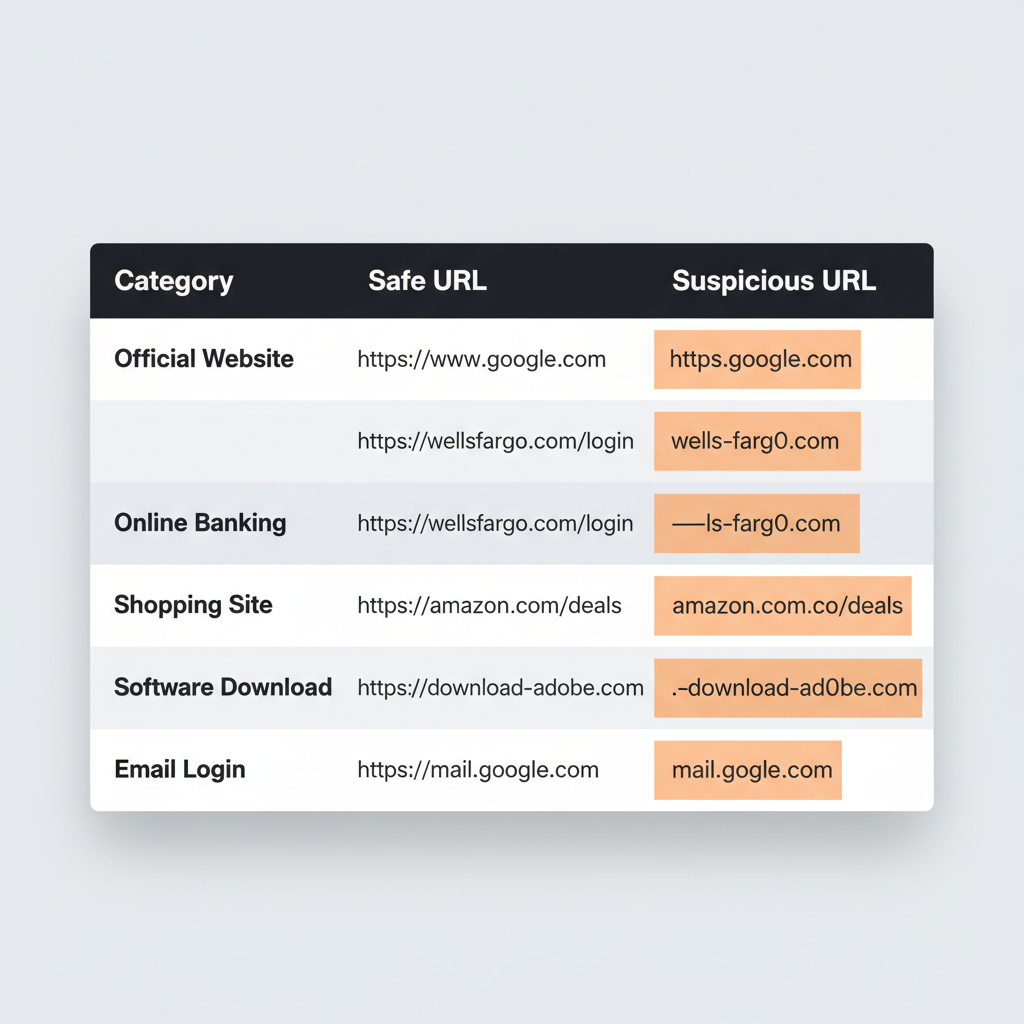
Legitimate websites use their official domain names, while phishing sites often use misspellings, extra words, or suspicious subdomains. Learning to spot these tricks takes seconds but prevents most attacks.
Common red flags in URLs:
| Red Flag | Example | Why It’s Suspicious |
|---|---|---|
| Misspelled domain | amaz0n.com | Typosquatting attack (zero instead of ‘o’) |
| Extra words | paypal-login.com | Not the official paypal.com domain |
| Suspicious subdomain | microsoft.verify-account.com | Real domain is verify-account.com, not Microsoft |
| Unusual TLD | bank-security.top | Legitimate banks don’t use.top or.info |
| Long random string | site.com/a8f7d9c2e1b3… | May hide malicious redirect |
The subdomain trick: Attackers often put legitimate brand names before the actual domain. In “microsoft.security-center.com,” the real website is security-center.com – Microsoft is just a subdomain meant to fool you.
HTTPS isn’t enough: While you should always check for HTTPS (the padlock icon), phishing sites commonly use HTTPS with free SSL certificates. A secure connection doesn’t mean the site is legitimate – it just means the connection is encrypted.
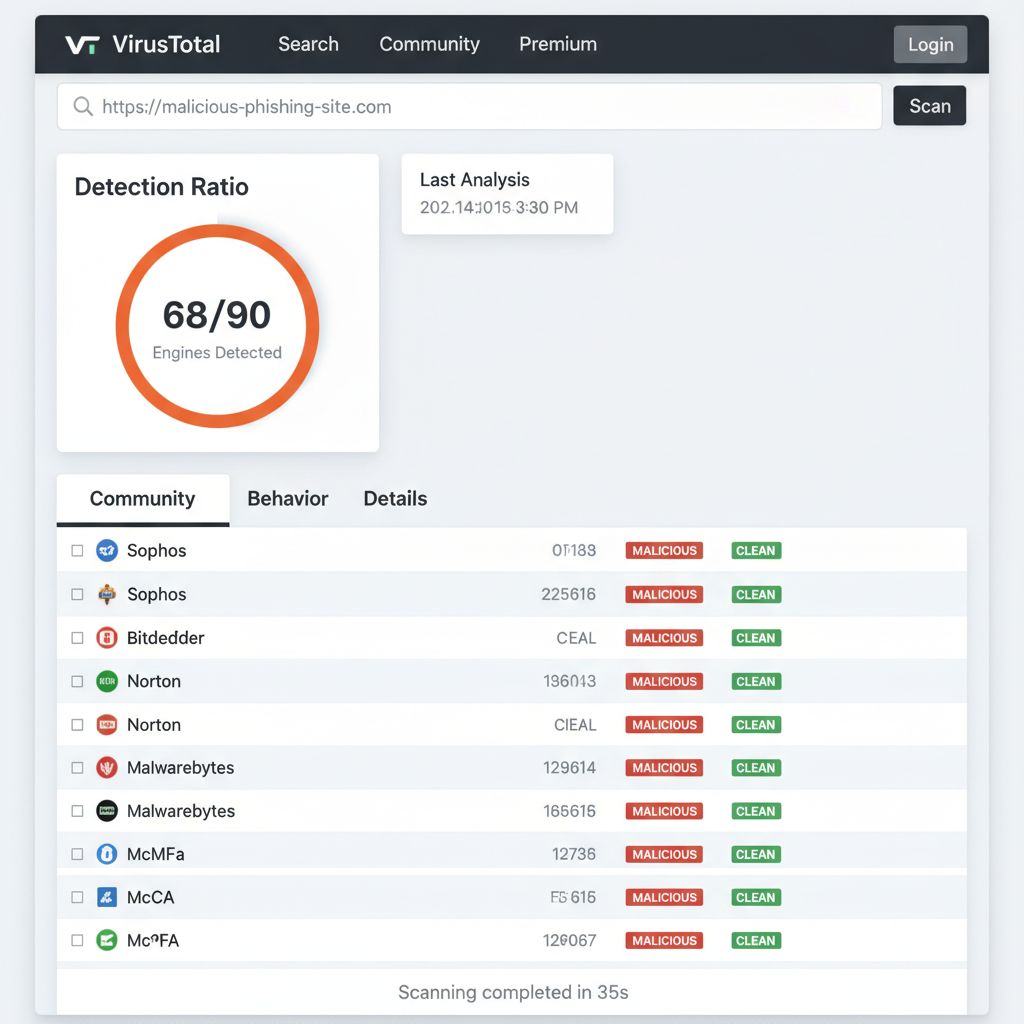
3. Use a Free URL Safety Checker Tool
URL safety checker tools scan links against databases of known malicious sites and analyze page content for phishing indicators. When you’re unsure about a link, paste it into one of these free tools before clicking.
Top free URL safety checkers in 2026:
| Tool | Best For | Multi-Engine | Real-Time |
|---|---|---|---|
| Google Safe Browsing | Quick general check | No | Yes |
| VirusTotal | Comprehensive scanning | Yes (70+ engines) | Yes |
| NordVPN Link Checker | Privacy-focused users | No | Yes |
| URLVoid | Reputation checking | Yes (30+ engines) | No |
| Bitdefender Link Checker | Simple one-click check | No | Yes |
Google Safe Browsing protects over 5 billion devices daily through malicious link warnings (Google Safe Browsing, 2025). It’s integrated into Chrome, Firefox, and Safari – but you can also manually check any URL through their transparency report.
VirusTotal is the most comprehensive option. It scans URLs against 70+ antivirus engines and threat databases simultaneously. If multiple engines flag a link, it’s almost certainly malicious.
Limitations to know: These tools mainly detect previously identified threats. Brand-new phishing pages may slip through until they’re reported and added to databases. Use multiple verification methods, not just one tool.
4. Expand Shortened URLs Before Clicking
Shortened URLs (like bit.ly or TinyURL links) hide the destination, so you should use a URL expander tool to reveal where the link actually leads before clicking. This is especially important for links received in emails, texts, or social media.
Why short links are risky: Attackers use URL shorteners to disguise malicious destinations. A link like “bit.ly/3xF9kL” could lead anywhere – a legitimate site, a phishing page, or a malware download.
The URL shortening market reached $1.12 billion in 2026, but security concerns remain a major growth hindrance (Global Market Statistics, 2026). Many organizations now block generic shortened links entirely.
Free URL expander tools:
- CheckShortURL.com – Reveals the destination of most short links
- GetLinkInfo.com – Shows redirect chain and final destination
- UnshortIt – Expands multiple URL shorteners
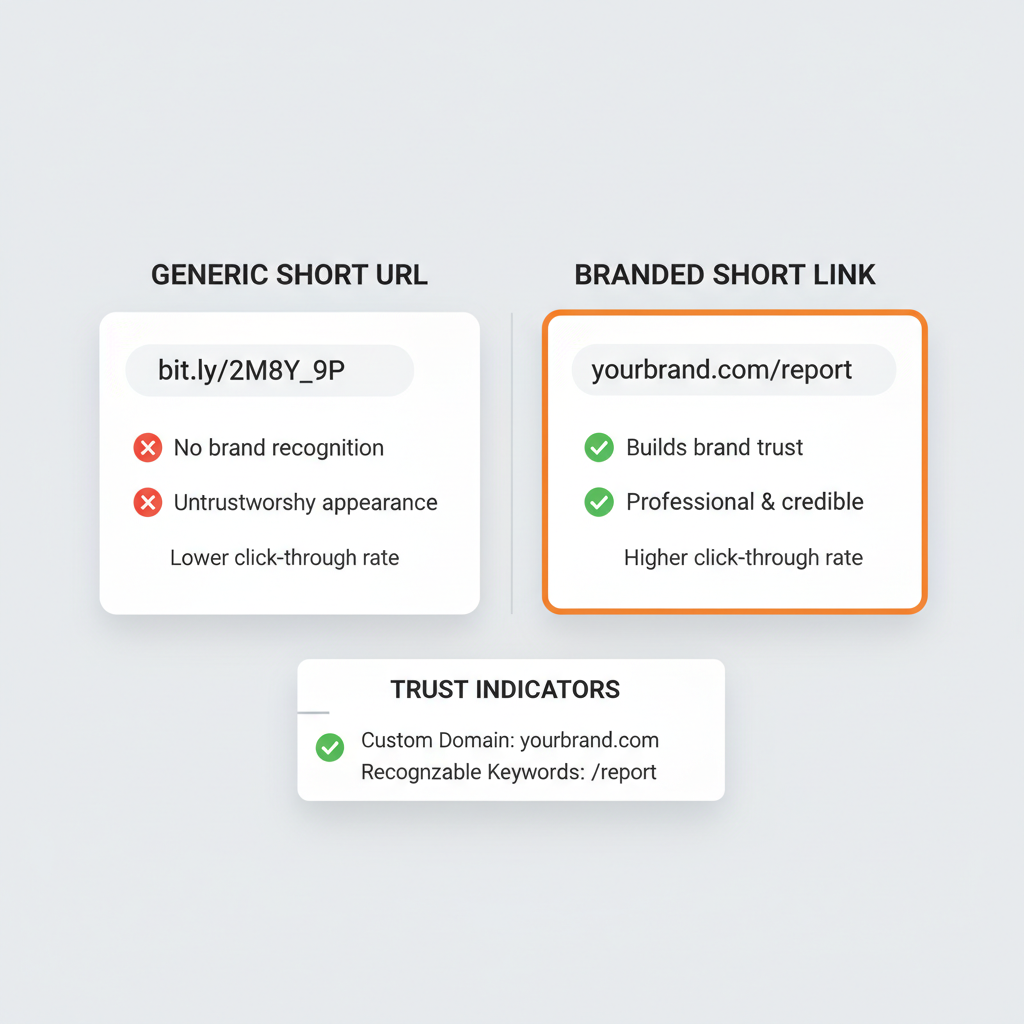
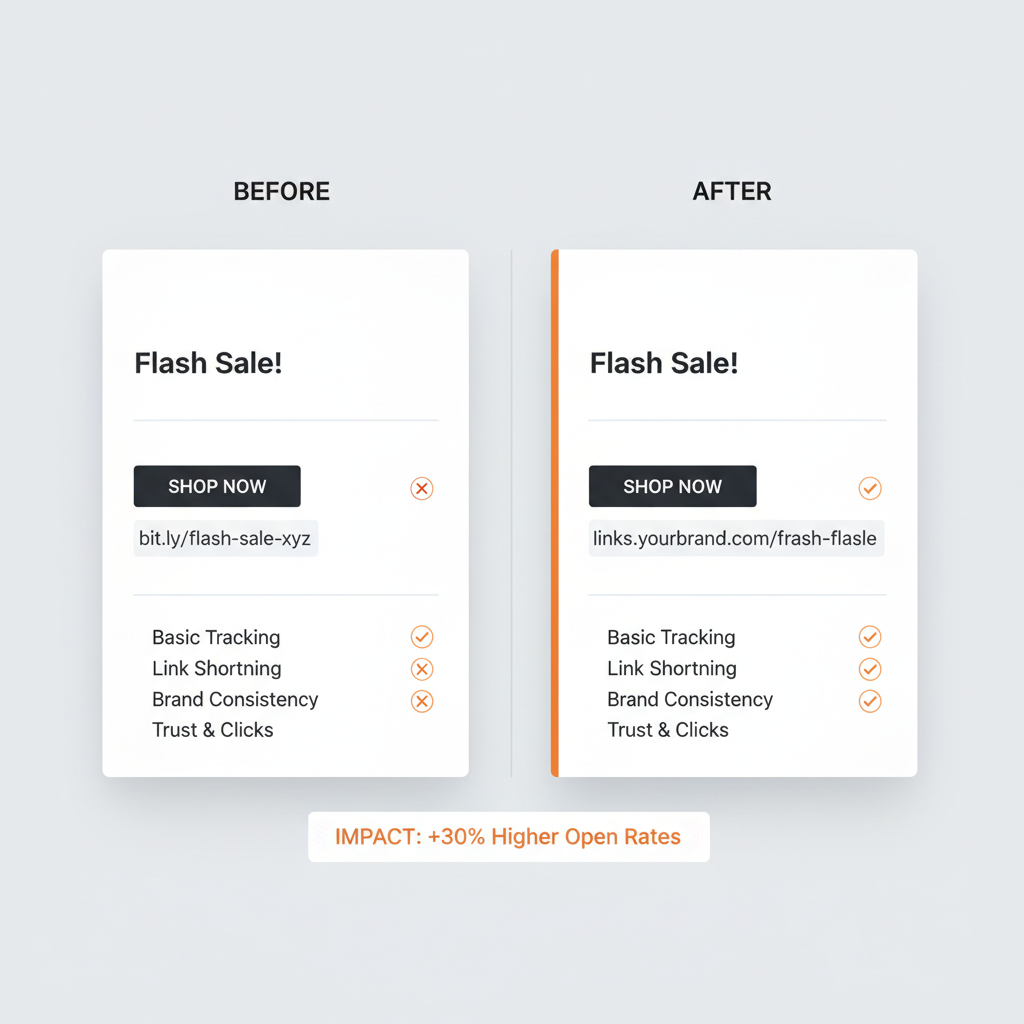
The branded link difference: Not all short links are created equal. Branded short links using custom domains (like link.nike.com/summer-sale) are inherently more trustworthy than generic shorteners. You can see exactly who created the link and verify it matches the expected sender.
If you’re a marketer sending campaign links, using branded short links instead of generic bit.ly URLs signals legitimacy to your recipients. Your audience uses these same link safety principles – and they’ll be more likely to click links from recognizable domains.
5. Verify the SSL Certificate Details
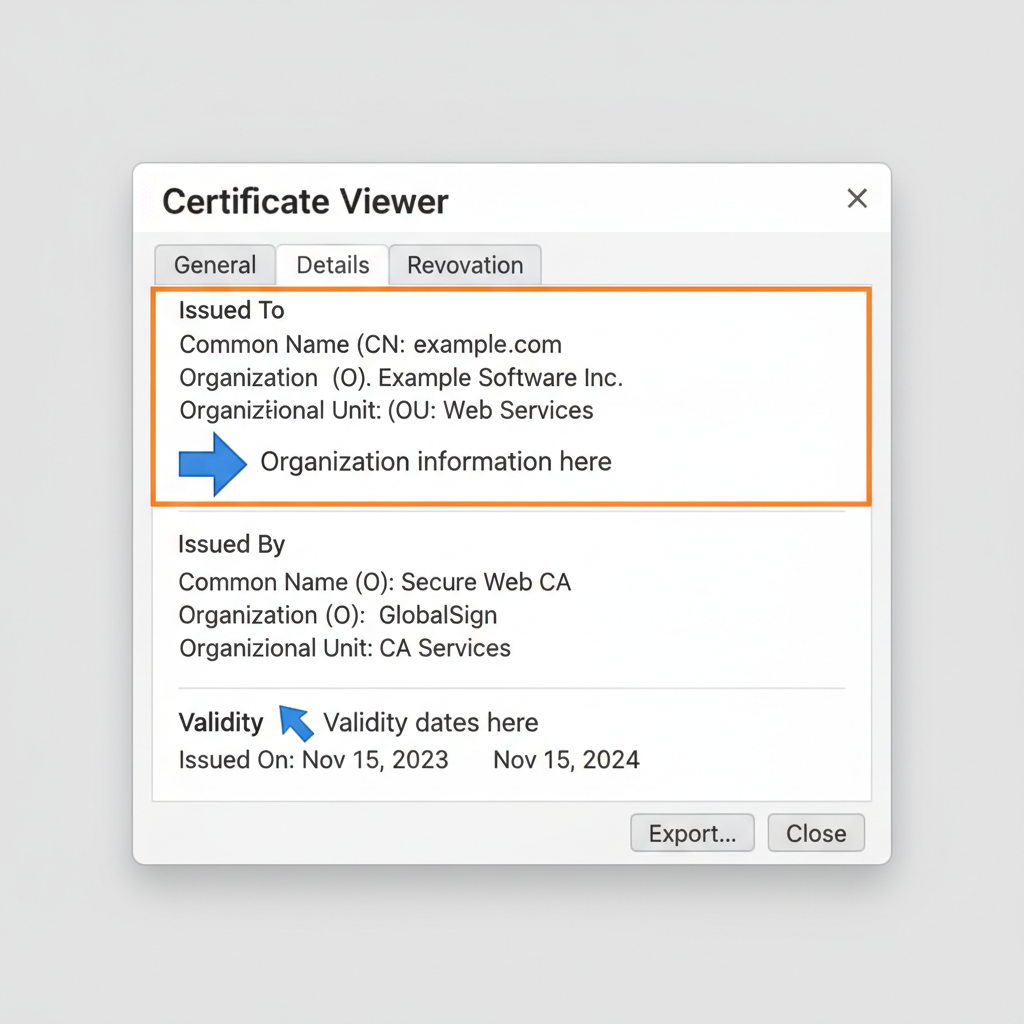
To check an SSL certificate, click the padlock icon in your browser’s address bar, then verify the certificate was issued to the correct organization and hasn’t expired recently. A certificate issued very recently on an unfamiliar site can be a red flag.
How to view certificate details:
- Click the padlock icon in your browser’s address bar
- Select “Connection is secure” or similar option
- Click “Certificate is valid” to view details
- Check the “Issued to” field for the organization name
- Verify the expiration date and issuance date
What to look for:
- Issued to: Should match the company you expect (PayPal.com should show PayPal, Inc.)
- Issued by: Reputable certificate authorities include DigiCert, Let’s Encrypt, Comodo
- Valid dates: Certificates issued just days ago on supposedly established sites warrant caution
- Organization validation: Extended Validation (EV) certificates show the verified company name
Important caveat: Free SSL certificates from Let’s Encrypt are legitimate and widely used by honest websites. However, attackers also use them because they’re easy to obtain. Certificate checks work best as one part of your verification process, not the sole indicator.
6. Watch for Urgency and Emotional Manipulation
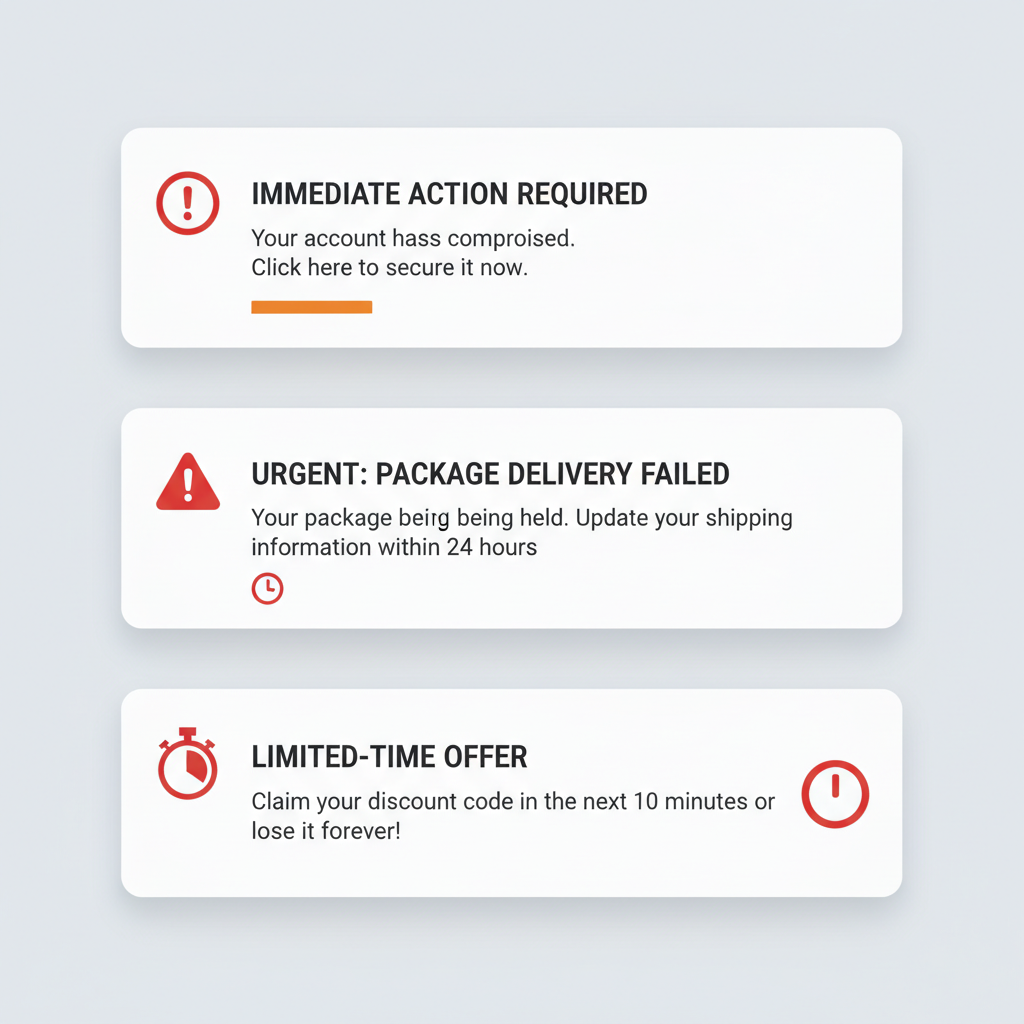
Be suspicious of messages that claim you must click, call, or open a link immediately. Phishing attacks rely on triggering emotional reactions that bypass your rational judgment. Legitimate companies rarely create artificial urgency.
Common phishing urgency tactics:
- “Your account will be suspended in 24 hours”
- “Unusual activity detected – verify now”
- “You’ve won! Claim your prize before it expires”
- “Your payment failed – update immediately”
- “Security alert – confirm your identity”
Why urgency works: When you’re panicked about losing account access or missing an opportunity, you’re less likely to carefully inspect the URL or question whether the message is legitimate. Attackers know this.
40% of Business Email Compromise (BEC) emails in Q2 2025 were AI-generated (Keepnet Labs, 2025), making these messages more convincing than ever. AI helps attackers write grammatically perfect, professionally formatted messages that look authentic.
How to respond: When you receive an urgent message, pause before clicking. If it claims to be from your bank, go directly to your bank’s website by typing the URL manually. If it’s about a package delivery, check the shipping company’s site directly. Never use links in the message to verify the message itself.
7. When in Doubt, Navigate Directly
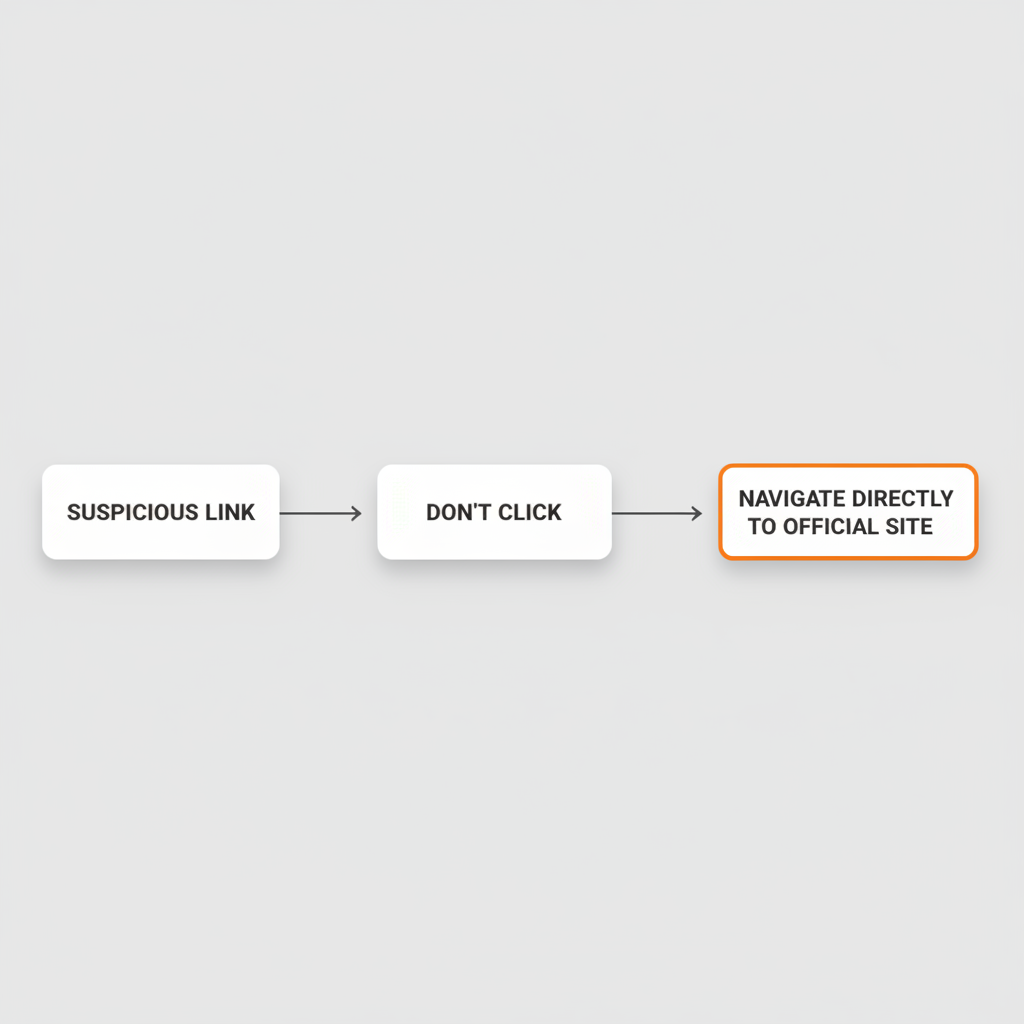
If you’re unsure about a link’s safety, don’t click it. Instead, manually type the official website URL into your browser or use a saved bookmark to navigate directly. This simple habit prevents the vast majority of phishing attacks.
Why this works: Phishing attacks succeed by making you use their malicious link. If you bypass the link entirely and go straight to the legitimate site, the attack fails completely.
Practical examples:
- Email says your Amazon account needs verification → Type amazon.com directly, then check your account
- Text claims your package delivery failed → Go to the shipping company’s actual website to check tracking
- Message says you won a prize from a company → Visit that company’s official site to verify
For messages from people you know: Accounts get hacked and send malicious links automatically. If a friend or colleague sends an unexpected link, especially one asking you to “check this out” or “you need to see this,” verify through a different channel first. Send them a text or call to confirm they actually sent it.
33.1% of employees are susceptible to clicking phishing links (KnowBe4, 2025). Don’t be part of that statistic – when in doubt, go direct.
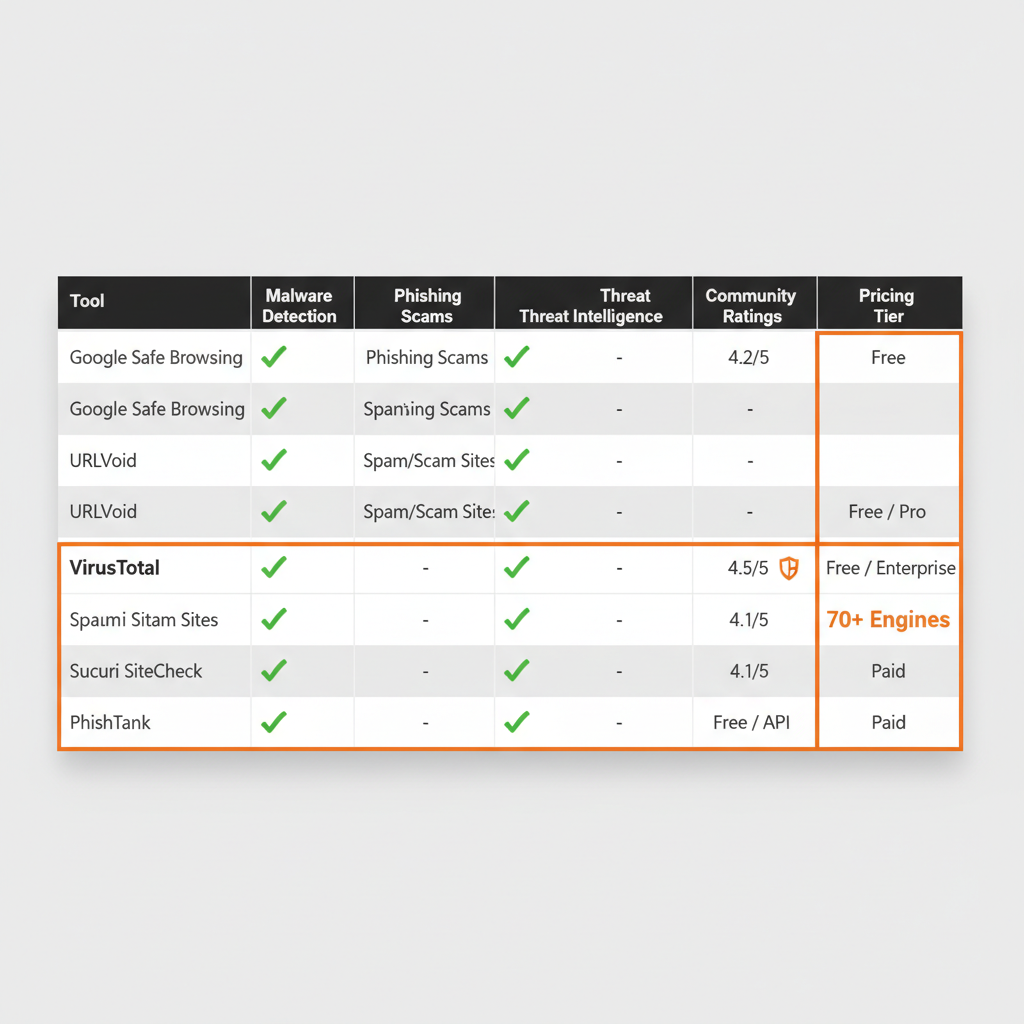
Best Free Link Safety Checker Tools (2026 Comparison)
Choosing the right URL safety checker depends on your needs. Here’s a comprehensive comparison of the best free tools available in 2026.
| Tool | Scans Multiple Engines | Real-Time Results | Mobile-Friendly | Best Use Case |
|---|---|---|---|---|
| Google Safe Browsing | No | Yes | Yes | Quick checks, already integrated in browsers |
| VirusTotal | Yes (70+) | Yes | Yes | Deep scanning when you need certainty |
| NordVPN Link Checker | No | Yes | Yes | Privacy-focused, no account needed |
| Bitdefender Link Checker | No | Yes | Yes | Simple interface, fast results |
| URLVoid | Yes (30+) | No | Yes | Checking domain reputation history |
| PhishTank | No | Yes | Yes | Community-reported phishing specifically |
When to use which tool:
For quick everyday checking: Google Safe Browsing or Bitdefender are fast and simple. Paste the URL, get instant results.
For maximum certainty: VirusTotal checks against 70+ threat databases. If you’re about to enter credentials or download a file, this comprehensive scan is worth the extra seconds.
For shortened URLs: Use CheckShortURL first to reveal the destination, then scan the revealed URL with VirusTotal or Google Safe Browsing.
For known phishing reports: PhishTank specializes in community-reported phishing sites. It’s particularly useful for checking links that claim to be from major brands.
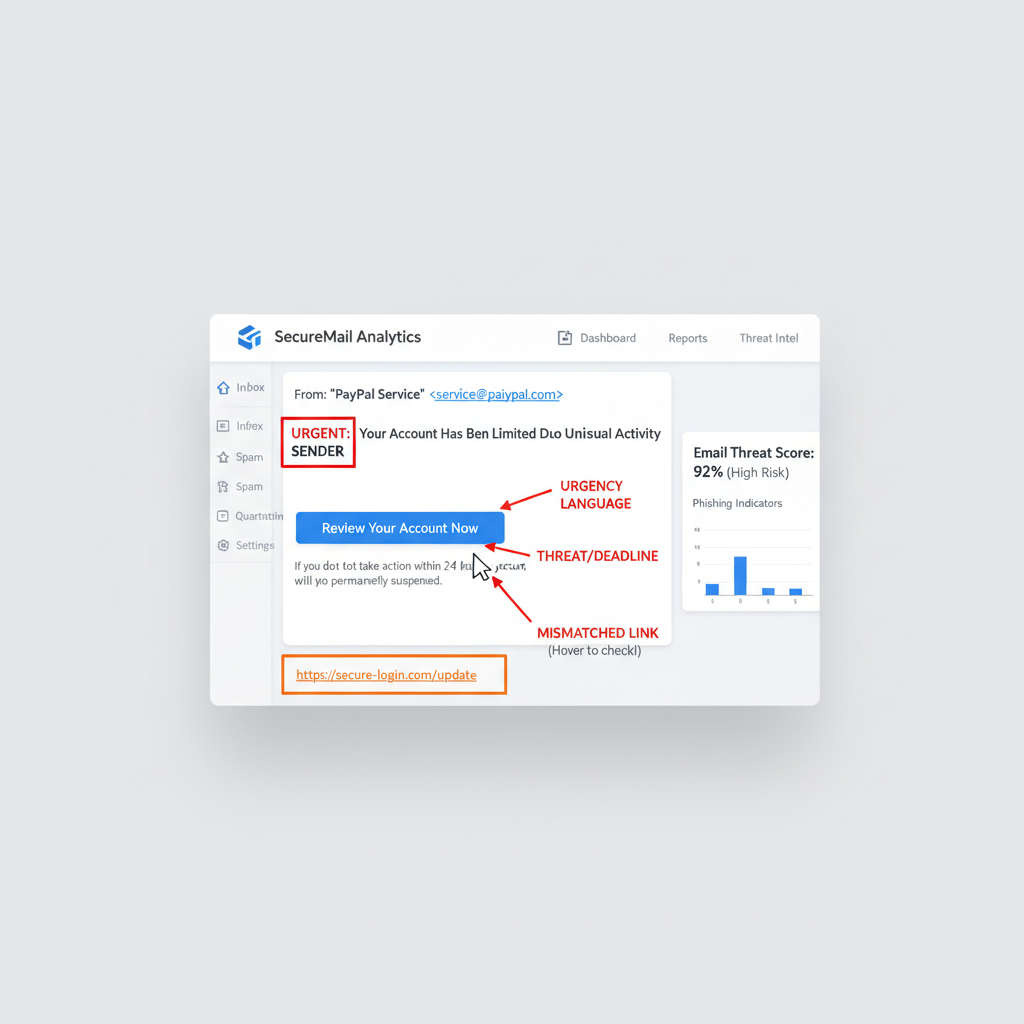
How to Spot Phishing Links in Emails
To spot phishing links in emails, compare the visible link text with the actual URL by hovering, check the sender’s email address for spoofing, and be suspicious of urgent requests for personal information. Email remains the primary delivery method for malicious links.
Email-specific red flags:
- Mismatched sender addresses: The display name says “PayPal Support” but the actual email address is support@paypa1-security.xyz
- Generic greetings: “Dear Customer” or “Dear User” instead of your actual name
- Grammar and spelling errors: Though AI-generated phishing is reducing this telltale sign
- Suspicious attachments: Especially.exe,.zip, or unexpected Office documents with macros
- Requests for sensitive data: Legitimate companies never ask for passwords or full credit card numbers via email
The link text trick: Attackers often make the visible link text look legitimate while the actual URL is malicious. An email might display “https://www.paypal.com/login” but the underlying link goes to “paypa1-secure.com/login”. Always hover to check.
Senior executives are 23% more likely to fall victim to AI-driven, personalized phishing attacks (Secureframe, 2025). Attackers research their targets and craft convincing messages using publicly available information from LinkedIn and company websites.
Mobile email is especially dangerous: Hovering doesn’t work the same way on phones, and shortened URLs are harder to inspect. Be extra cautious with email links on mobile devices – when possible, wait until you’re on a desktop to verify suspicious messages.
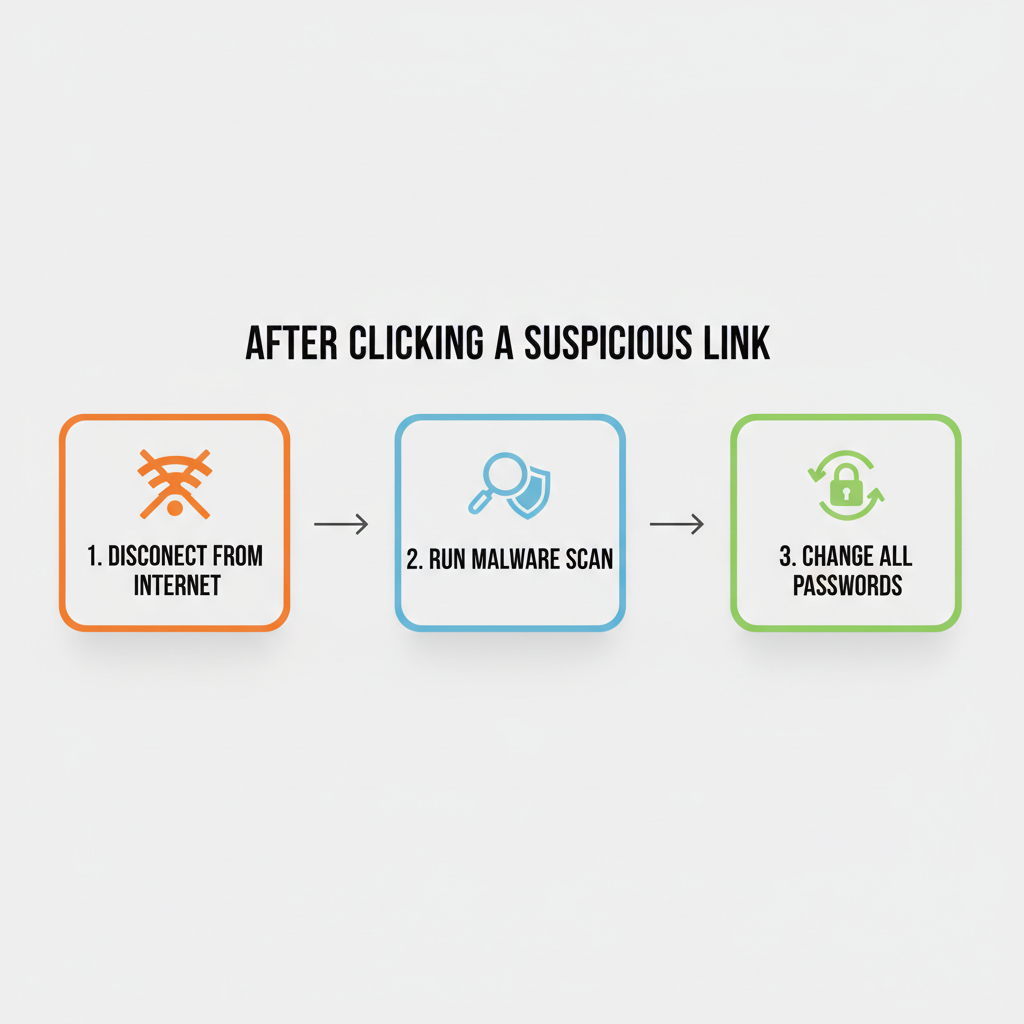
What to Do If You Clicked a Suspicious Link
If you accidentally click a phishing link, act quickly. Disconnect from the internet, run an antivirus scan, and change passwords for sensitive accounts. Not all clicks result in infection, but swift action minimizes potential damage.
Immediate action steps:
| Step | Action | Why It Matters |
|---|---|---|
| 1 | Disconnect from internet | Stops any data transmission to attackers |
| 2 | Don’t enter any information | Close the page without filling forms |
| 3 | Run full antivirus scan | Detects any malware that may have been installed |
| 4 | Change passwords | Protects accounts if credentials were captured |
| 5 | Enable 2FA everywhere | Adds security layer even if password is compromised |
| 6 | Monitor financial accounts | Watch for unauthorized transactions |
| 7 | Report the phishing attempt | Helps protect others |
Where to report phishing:
- Forward phishing emails to reportphishing@apwg.org
- Report to Google Safe Browsing: safebrowsing.google.com/safebrowsing/report_phish
- File a complaint with the FTC: reportfraud.ftc.gov
- Report to the impersonated company directly
Signs your device may be compromised:
- Unexpected pop-ups or new browser toolbars
- Significantly slower computer performance
- Programs launching automatically
- Unfamiliar files or applications
- Friends receiving strange messages from your accounts
If you notice any of these signs, consider consulting a cybersecurity professional. The average phishing-related data breach costs $4.88 million (Deepstrike, 2025) – for businesses, professional incident response is worth the investment.
For Marketers: Creating Links People Trust
The same link safety principles work in reverse for marketers. If you’re sending campaign links, your audience is judging YOUR links for safety using these exact criteria. Understanding this helps you create links that get clicked instead of ignored.
Why your links might look suspicious:
Your recipients are trained to watch for generic shortened URLs, unexpected senders, and urgency tactics. If your marketing emails use bit.ly links, even legitimate campaigns can trigger spam filters or user skepticism.
How to create trustworthy campaign links:
- Use branded short links: Replace generic bit.ly URLs with your own domain (link.yourbrand.com/offer). Recipients immediately see the link is from you.
- Make destinations clear: Use descriptive slugs like /summer-sale instead of random characters like /3xF9kL.
- Ensure HTTPS: All your links should use secure connections. Most link management tools handle this automatically.
- Consistent branding: Use the same short domain across all channels so recipients learn to recognize your links.
The trust impact is measurable: Branded short links can increase click-through rates by up to 39% compared to generic shorteners. Your audience is more likely to click when they can verify the sender before clicking.
Tools like linkutm let you create branded short links with custom domains while automatically adding UTM parameters for tracking. You get the analytics you need without sacrificing the trust signals your recipients look for.
If you’re sending hundreds of campaign links monthly, switching to branded links is one of the highest-impact changes you can make. Your recipients are checking link safety – make sure your links pass the test.
Frequently Asked Questions
How can I check if a link is safe on my phone?
Long-press the link to preview the destination URL before tapping. You can also copy the link and paste it into VirusTotal or Google Safe Browsing for verification. Be extra cautious on mobile since hovering doesn’t work like on desktop.
Are shortened URLs always dangerous?
No, but they hide the destination which makes verification harder. Branded short links (like link.yourbrand.com) are more trustworthy than generic bit.ly links because you can identify the sender before clicking.
Is HTTPS enough to prove a link is safe?
No, HTTPS only encrypts the connection – it doesn’t verify the site is legitimate. Phishing sites commonly use HTTPS with free SSL certificates. Always check the domain name carefully in addition to the padlock.
What happens if I accidentally click a phishing link?
Disconnect from the internet immediately, run an antivirus scan, and change passwords for sensitive accounts. Not all clicks result in infection, but acting quickly minimizes potential damage.
Can I trust links sent by friends or colleagues?
Be cautious – accounts get hacked and send malicious links automatically. If someone sends an unexpected link, especially with vague messages like “check this out,” verify through a different communication channel first.
How do URL safety checker tools work?
They scan URLs against databases of known malicious sites and analyze page content for phishing indicators. Some tools like VirusTotal check against 70+ antivirus engines simultaneously for comprehensive results.
What browser extensions help check link safety?
Web of Trust (WOT), Bitdefender TrafficLight, and Norton Safe Web rate links directly in search results and warn you before visiting dangerous sites. These provide passive protection without manual checking.
How do I report a phishing link?
Forward phishing emails to reportphishing@apwg.org. You can also report to Google Safe Browsing directly and file a complaint at reportfraud.ftc.gov. Reporting helps protect others from the same attack.
Stay Safe: Key Takeaways
Checking link safety takes seconds but prevents attacks that cost billions annually. Here’s your quick reference:
- Hover before clicking to reveal the true destination URL
- Check domains carefully for misspellings, extra words, and suspicious subdomains
- Use URL safety checkers like VirusTotal or Google Safe Browsing when uncertain
- Expand shortened URLs before clicking to see where they lead
- Watch for urgency tactics that pressure you to click without thinking
- When in doubt, navigate directly to official websites instead of using links
With 400% more phishing attacks succeeding due to AI enhancement (TechMagic, 2025), these verification habits are more important than ever. Make them automatic, and you’ll avoid the vast majority of malicious links you encounter.
For marketers: Your audience uses these exact criteria to evaluate YOUR links. Using branded short links with custom domains instead of generic shorteners signals legitimacy and can boost click-through rates significantly.
Start applying these seven methods today. Bookmark this guide for reference, share it with colleagues who handle sensitive data, and make link verification a habit – not an afterthought.